Cricfy TV on Laptop — Install Guide for Windows and Mac
Watch Cricfy TV live cricket on your laptop screen using an Android emulator. This guide covers the full BlueStacks Cricfy TV install process plus laptop-specific tips for battery life, thermal management, display quality, and screen mirroring — so Cricfy TV runs smoothly even on older or ultralight machines.
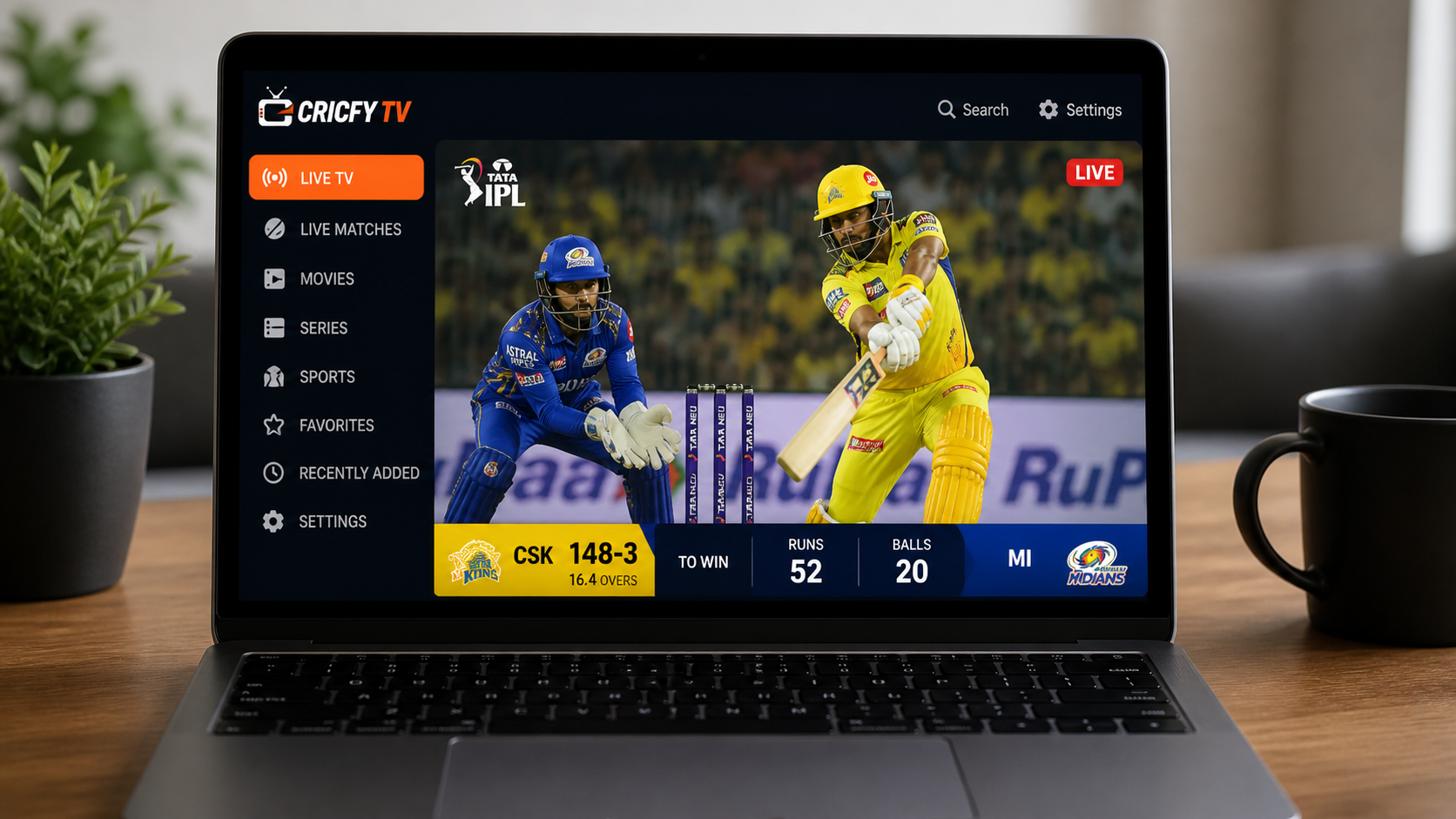
Cricfy TV on a laptop combines the portability of mobile viewing with a screen large enough to follow ball-by-ball action comfortably. Because Cricfy TV is Android-only, installation requires a short emulator setup — but a laptop has specific constraints that a desktop PC does not: limited battery, restricted cooling airflow, and potentially lower sustained CPU performance due to thermal throttling. This guide addresses all of these directly.
The core Cricfy TV install process mirrors our PC installation guide, but the settings you choose matter far more on a laptop. Allocating too many CPU cores to the emulator can trigger thermal throttling mid-match. Running at 1080p on a 13-inch screen wastes battery with no visible quality improvement. This page gives you the laptop-optimised configuration so Cricfy TV Cricfy TV runs stably for a full T20 or Test day without overheating your machine or flattening the battery.
Laptop vs Desktop — Why the Setup Differs
Running Cricfy TV via BlueStacks on a laptop is more demanding than on a desktop because of three hardware constraints unique to portable machines:
| Factor | Desktop PC | Laptop | Impact on Cricfy TV |
|---|---|---|---|
| Cooling | Large heatsink, multiple fans | Small fan, thin heatsink | Laptops throttle CPU after 20–30 min sustained load |
| Power | Mains power only | Battery — limited runtime | 3–4 hour match can drain 40–60% battery |
| RAM | 16–32 GB typical | 8 GB common (soldered) | Less headroom for emulator + OS simultaneously |
| Screen size | 24–27 inch external | 13–15 inch built-in | 720p is sufficient — 1080p wastes battery for no gain |
| Connectivity | Built-in ethernet port | Wi-Fi only (most models) | Wi-Fi variability causes buffering — use USB-C ethernet |
How to Install Cricfy TV on a Laptop
The installation method is the same as for a desktop PC — BlueStacks Android emulator — with laptop-optimised settings applied at the configuration stage. Follow these steps in order:
- Plug in your charger before starting the Cricfy TV install. BlueStacks installation unpacks and installs files that push disk and CPU hard. On battery, some laptops throttle during this phase, making installation slower. More importantly, the emulator performs significantly better when the laptop is not power-limited.
- Download BlueStacks 5 from the official site — bluestacks.com (Windows and macOS versions available). The installer is approximately 500 MB. Do not download from third-party sites. LDPlayer is a lighter alternative for Windows laptops — download from ldplayer.net.
- Run the installer. The setup takes 5–10 minutes and needs 5–8 GB of disk space. If BlueStacks prompts you to enable hardware virtualisation (VT-x for Intel, AMD-V for AMD), restart into BIOS and enable it — this is especially important on laptops where every efficiency gain matters.
- Download the Cricfy TV APK v6.6 from our verified APK download page. The file is approximately 22 MB — save it to your Downloads folder.
- Install the APK into BlueStacks by dragging the Cricfy TV APK file from your Downloads folder into the BlueStacks window. The emulator detects it and installs automatically in 5–10 seconds. No additional steps required.
- Apply laptop-optimised BlueStacks settings (critical — see the Emulator Settings section below before launching Cricfy TV for the first time). Wrong settings here cause buffering, overheating, and battery drain.
- Launch Cricfy TV from the BlueStacks home screen. Go to the Live tab, select your match, and choose 720p stream quality. If you have a USB-C to ethernet adapter, plug it in for a stable connection and eliminate Wi-Fi buffering entirely.
Battery Optimisation — Watch Cricfy TV Longer Unplugged
Running an Android emulator while streaming is one of the most battery-intensive tasks a laptop can do. A T20 match (3–4 hours) typically drains 40–60% of a standard 50–60 Wh laptop battery. Here is how to extend that significantly:
🔋 Battery tip 1 — Enable BlueStacks Eco Mode
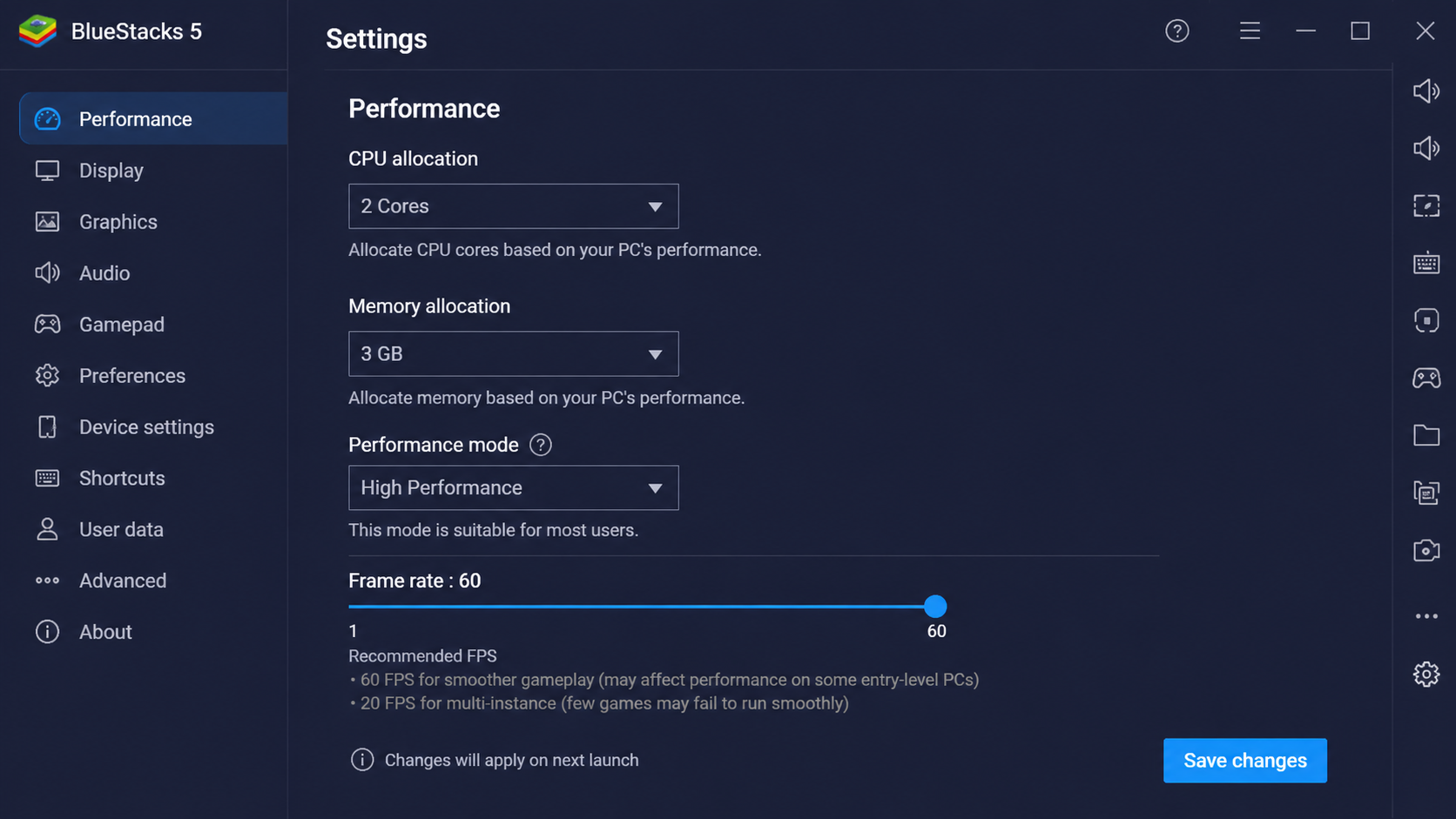
Eco Mode throttles the emulator when Cricfy TV is in the foreground but you are not actively interacting with it (e.g. during breaks between overs). In BlueStacks: click the three-line menu → Settings → Performance → Enable Eco Mode. This alone reduces battery draw by 15–25% during non-active moments.
🔋 Battery tip 2 — Stream at 720p, not 1080p
On a 13–15 inch laptop screen, the visual difference between 720p and 1080p in the Cricfy TV player is negligible. The GPU and CPU work significantly harder to decode 1080p. Streaming at 720p extends battery life by approximately 20–30 minutes over a T20 match with no perceptible quality loss.
🔋 Battery tip 3 — Reduce emulator CPU allocation
In BlueStacks settings → Performance, set CPU cores to 2 (not 4). Cricfy TV streaming at 720p does not need 4 cores — it needs stable cores. Using 2 cores allows the laptop's thermal management to keep temperatures lower, preventing the power-hungry throttle-and-recover cycle that actually wastes more energy than a steady lower allocation.
🔋 Battery tip 4 — Close background apps and sync
Pause Windows Update, OneDrive, Dropbox, Google Drive sync, and any Chrome tabs with auto-refresh. Each of these competes for CPU time and increases background battery draw. On Windows: Settings → System → Battery → Battery Saver → turn on during streaming. On Mac: Battery menu → Low Power Mode.
🔋 Battery tip 5 — Lower screen brightness
The laptop display is one of the biggest battery consumers. Reduce brightness to 60–70% — still comfortable for indoor viewing but meaningfully extends runtime. On full IPL day session (8 hours), lower brightness can add 45–60 minutes of runtime.
Thermal Management — Prevent Overheating During Matches
Thin ultrabooks and gaming laptops on balanced power profiles both throttle their CPUs when sustained temperature limits are hit. When throttling occurs during Cricfy TV streaming, you see frame drops, buffering, and audio stutter — often mistaken for an internet problem. Here is how to prevent it:
- Hard flat surface only: Never stream on a bed, cushion, or carpet. Soft surfaces block the bottom vents that provide most of a laptop's cooling airflow. A book or laptop stand works well. This single change can reduce sustained CPU temperature by 8–12°C.
- Cooling pad: If you watch cricket on your laptop regularly, a cooling pad (₹800–₹2,000 / $10–$25) adds an active cooling layer under the chassis. On thin ultrabooks, this can prevent throttling entirely during three-hour T20 sessions.
- Limit emulator CPU to 2 cores: Fewer cores means less total heat generated. For Cricfy TV streaming at 720p, 2 cores is sufficient and keeps temperatures 10–15°C lower than a 4-core allocation.
- Use Scrcpy instead of the emulator: If your laptop runs consistently hot during emulator use, switch to screen mirroring via Scrcpy — it pushes almost zero CPU load on the laptop since all processing happens on the phone. See the Screen Mirroring section below.
- Gaming laptops: Switch to High Performance power mode for a T20 match. Paradoxically, performance mode maintains higher clock speeds more consistently, which completes tasks faster and reduces the duration of high thermal loads compared to battery-saver modes that throttle unpredictably.
Display and Screen Settings
Cricfy TV on a laptop screen requires different display settings than on a desktop monitor due to screen size and DPI differences:
Recommended emulator display resolution by laptop screen size
| Laptop Screen | Native Resolution | Emulator Setting | Stream Quality | Reason |
|---|---|---|---|---|
| 13 inch | 1920×1200 / 2560×1600 | 1280×720 | 720p | At 13", 720p is indistinguishable from 1080p |
| 14 inch | 1920×1080 / 2560×1440 | 1280×720 | 720p | Best battery/quality balance for mobile work laptops |
| 15.6 inch | 1920×1080 / 2560×1440 | 1920×1080 | 720p or 1080p | Full HD visible at this size; choose 720p stream on weaker hardware |
| 17 inch | 1920×1080 / 2560×1440 | 1920×1080 | 1080p | Large enough that HD makes a visible difference |
High-DPI display fix
If you have a 4K or 2.8K display (common on Dell XPS, MacBook Pro with Liquid Retina, ASUS ZenBook Pro), BlueStacks may render at an unusually small size. Fix it: right-click the BlueStacks shortcut → Properties → Compatibility → Change High DPI Settings → Override High DPI Scaling → Application. This forces the emulator to render at the correct size for your screen.
Laptop-Optimised Emulator Settings
These settings differ from desktop recommendations specifically to account for battery and thermal constraints:
| Setting | Desktop Recommendation | Laptop Recommendation | Why Different |
|---|---|---|---|
| RAM | 4 GB | 3 GB (8 GB laptop) / 2 GB (4 GB laptop) | Leaves OS headroom, prevents swap/paging |
| CPU cores | 4 cores | 2 cores | Reduces heat generation, prevents throttling |
| Resolution | 1280×720 or 1920×1080 | 1280×720 | Lower GPU load, less heat, no visible quality loss on small screens |
| Graphics | Hardware-accelerated | Hardware-accelerated | Same — software rendering is always worse |
| Eco Mode | Optional | Enable always | Significantly reduces idle power draw between overs |
| Frame rate cap | 60 fps | 30 fps | Cricket streaming at 30 fps is indistinguishable from 60 fps; halves GPU work |
Screen Mirroring — The Zero-CPU Alternative
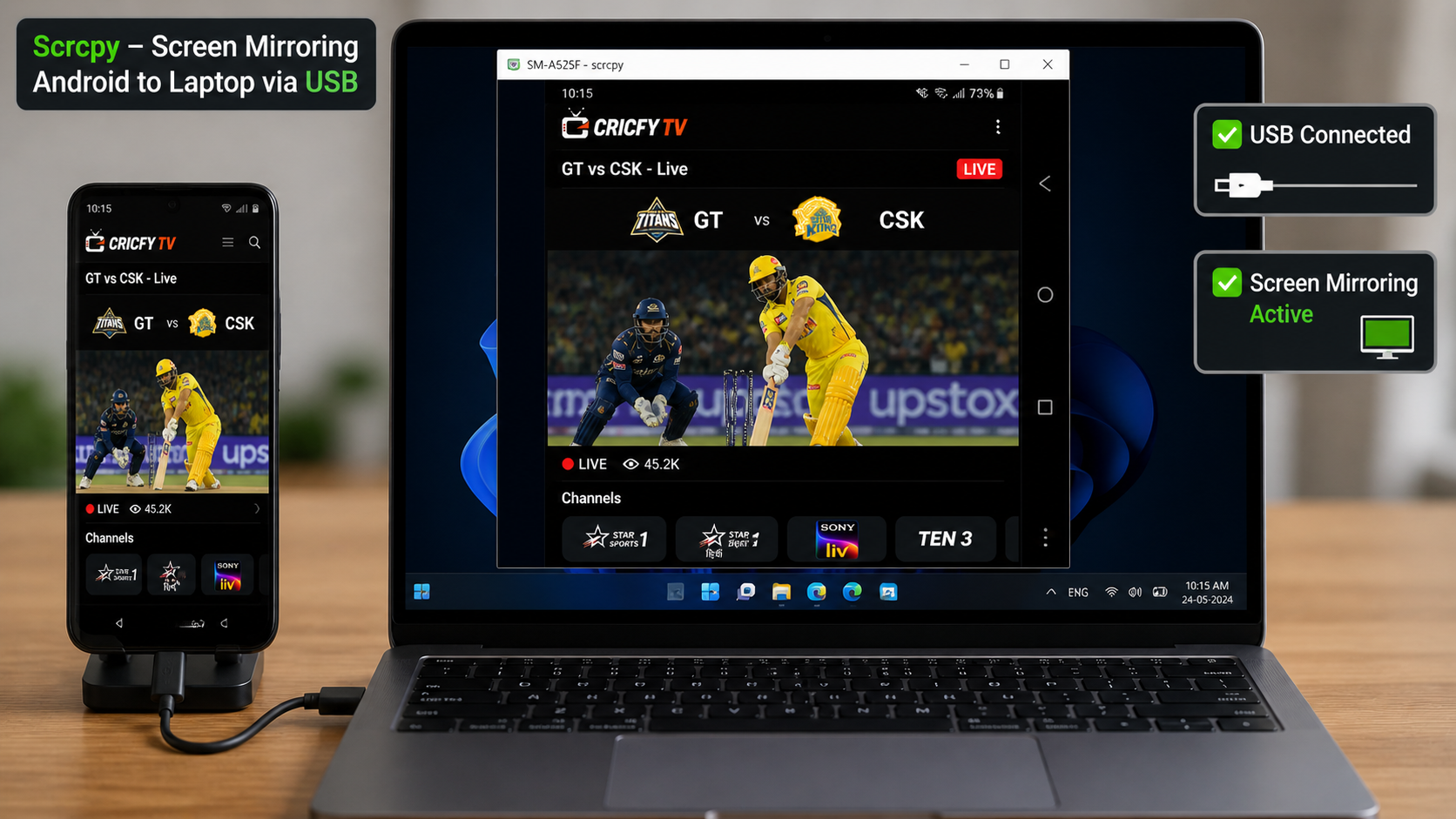
If your laptop struggles with emulator heat or you want to save battery entirely, screen mirroring is the ideal alternative. Scrcpy (free, open-source) mirrors your Android phone's Cricfy TV stream's Cricfy TV stream to the laptop over USB with virtually no latency and almost zero laptop CPU usage — since all the streaming work runs on your phone.
How to set up Scrcpy for Cricfy TV on laptop
- First, make sure Cricfy TV v6.6 is installed on your Android phone. If not, download the APK v6.6 and install it on your phone first.
- Enable USB Debugging on your phone: Settings → About Phone → tap Build Number 7 times → Developer Options → USB Debugging: ON.
- Download Scrcpy for your OS from github.com/Genymobile/scrcpy — it is free and open-source with no installer required (Windows: extract zip, Mac: install via Homebrew).
- Connect your phone to the laptop via USB cable. When prompted on the phone, allow USB debugging from your computer.
- Run Scrcpy (double-click scrcpy.exe on Windows, or run
scrcpyin Terminal on Mac). Your phone screen appears in a window on the laptop. Open Cricfy TV on the phone and the stream plays on both screens simultaneously.
Cricfy TV Setup Guide by Laptop Type
💻 Ultrabook / Thin-and-Light (MacBook Air, Dell XPS 13, ASUS ZenBook)
These machines throttle aggressively under sustained load. Use Scrcpy or screen mirroring for a full match — the emulator approach is workable for a T20 but will struggle through a Test day. If using BlueStacks, limit to 2 CPU cores, 2 GB RAM, 720p, and place on a cooling pad.
💻 Standard Business Laptop (ThinkPad, HP EliteBook, Dell Latitude)
Well-balanced thermal design typically handles BlueStacks for a T20 without issues. Use 2 CPU cores, 3 GB RAM, 720p. Plug in the charger. LDPlayer is recommended over BlueStacks for these machines — lighter resource use means cooler operation.
💻 Gaming Laptop (ASUS ROG, Lenovo Legion, MSI, Razer Blade)
These machines handle the emulator load easily. Switch to High Performance power mode. You can use 4 CPU cores and 4 GB RAM. 1080p streaming looks great on 15–17 inch gaming displays. Ethernet via built-in RJ45 port (most gaming laptops have one) eliminates all Wi-Fi buffering.
MacBook (Air and Pro — M-series)
BlueStacks running Cricfy TV works natively on Apple Silicon. On M2/M3, you can run BlueStacks at 3 GB RAM, 2 CPU cores for 720p streaming with excellent battery — typically 2–2.5 hours of Cricfy TV streaming per charge on MacBook Air M2. For all-day Test match streaming on battery, use Scrcpy instead — MacBooks with M-series chips can mirror at very low power consumption.
For more streaming options without any installation, see our live cricket streaming guide for browser-based alternatives. If Cricfy TV is not working on your laptop, visit the troubleshooting hub for emulator-specific error fixes. For the best alternative apps when the Cricfy TV server is overloaded during an IPL match during an IPL final, see our Cricfy TV alternatives guide.
Frequently Asked Questions — Cricfy TV on Laptop
Can I install Cricfy TV directly on a laptop without an emulator?
No. Cricfy TV is Android-only — there is no native Windows or macOS app. You need either an Android emulator (BlueStacks, LDPlayer) or screen mirroring from your phone via Scrcpy or Vysor. Screen mirroring is the better option for laptops with limited cooling or battery, as it uses almost no laptop CPU.
How much does running Cricfy TV drain a laptop battery?
With BlueStacks at recommended settings (2 cores, 3 GB RAM, 720p), expect 40–55% battery drain over a 3–4 hour T20 match on a standard 50–60 Wh battery. Enabling Eco Mode, reducing to 720p, and dimming the screen reduces this to 30–40%. With Scrcpy screen mirroring instead of BlueStacks, laptop battery drain drops to 10–20% for the same match.
Which emulator is better for Cricfy TV on a laptop — BlueStacks or LDPlayer?
LDPlayer is better for Windows laptops — it uses about 1.2–1.5 GB RAM vs BlueStacks at 1.8–2.2 GB at idle, which means more headroom for the OS and cooler temperatures. BlueStacks is the only choice for MacBook users as LDPlayer is Windows-only. For gaming laptops with 16+ GB RAM, either works equally well.
My laptop overheats when I use Cricfy TV in BlueStacks — how do I fix it?
Place the laptop on a hard flat surface (not a bed or cushion) — this alone reduces temperatures 8–12°C. Limit BlueStacks to 2 CPU cores in Performance settings. Enable Eco Mode. Stream at 720p. Use a ₹1,000 / $15 cooling pad for sustained sessions. If overheating continues, switch to Scrcpy screen mirroring from your phone — it pushes almost no load onto the laptop at all.
How do I watch Cricfy TV on a laptop without an emulator?
Install Cricfy TV on your Android phone, then use Scrcpy (free, open-source) to mirror the phone screen to your laptop via USB cable. Enable USB Debugging on your phone, download Scrcpy for your OS, connect the phone, and run the app. The Cricfy TV stream appears in a laptop window with very low latency and almost no battery drain from the laptop itself.